
CPD Guidlines
Connecting QHSE professionals to drive sustainable Health, Safety, Quality, and Environmental excellence.
📘 QHSE Association: Digital CPD Portal Guide
Welcome to your new Digital Competency Passport. This system does more than just track points—it verifies your skills, analyzes your career readiness, and allows employers to validate your credentials instantly via your QR Code.
Here is how to master the system.
1. Getting Started
🔑 Accessing Your Dashboard
Login: Log in to your account at
https://qhsea.org/user-account/.Auto-Redirect: The system will automatically take you to the “My CPD” Dashboard.
Profile Setup: On the right side of the dashboard, check the “Update Profile” box.
Photo: Upload a professional headshot (this appears on your public verification page).
KYC (Identity): Upload your National ID (Front/Back) to get the “Identity Verified” badge (Green Tick) on your profile. Note: Images are deleted after admin verification for privacy.
2. How to Log CPD Points
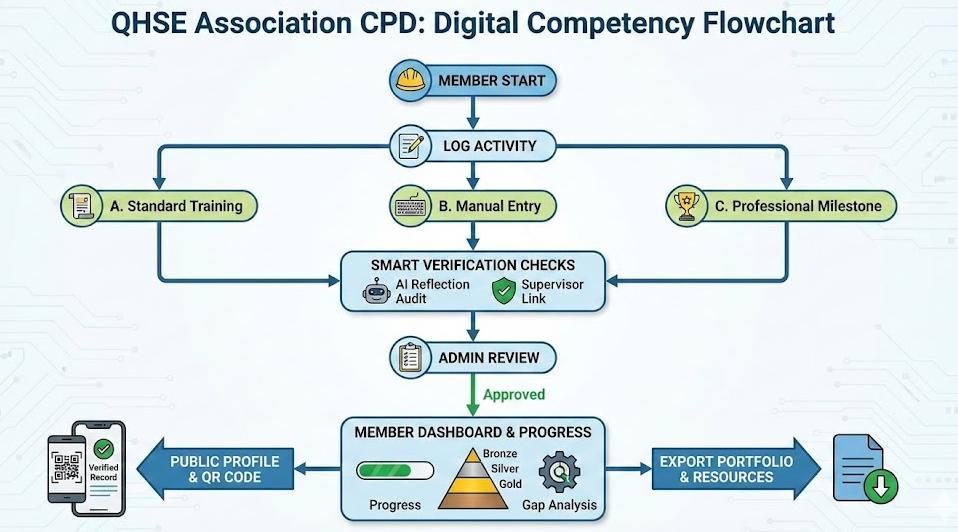
There are three ways to earn points. Click “Log New Activity” on your dashboard to start.
🅰 Option A: Standard Training (Pre-set)
If you attended a recognized course:
Select the course name from the dropdown list.
The points and provider name will auto-fill.
Upload your certificate (PDF or JPG).
🅱 Option B: Manual Entry
For external workshops, conferences, or private study:
Select “Other / Manual Entry”.
Type the exact Activity Title.
Enter the Provider Name (e.g., “OSHA”, “NEBOSH”, or “Internal Company Training”).
Enter the Training Center Email (Required for verification).
🏆 Option C: Professional Milestones (Category 7)
You can claim points for work experience!
Select “Professional Milestone / Experience”.
Choose the type (e.g., Years of Experience, Major Project, Site Supervision).
The system will calculate your points automatically (e.g., 25 points for 5 years experience).
Requirement: You must enter your Manager’s Email. They will receive a link to confirm your claim.
3. The “Smart” Features (Important!)
🤖 AI Reflection Audit
When logging activity, you must write a Reflection (What did you learn?).
The Rule: You must write at least 20 words.
The Check: Our AI system will block “gibberish” (e.g., “good course good course”) or single-word entries. Please write a meaningful sentence about how you applied the skill.
🛡️ Supervisor Verification (The Digital Seal)
This is the most powerful feature for your career.
When logging an activity, enter your Supervisor’s Name and Email.
The system sends them a secure link.
They click “Verify” (no login required for them).
Result: Your certificate gets a “Verified by Supervisor” shield. Employers trust these records more than unverified ones!
4. Understanding Your Progress
📊 The Tier System
Your status updates automatically based on your Lifetime Points:
🥉 Bronze: Entry Level (0 – 59 pts)
🥈 Silver: Professional (60 – 149 pts)
🥇 Gold: Expert (150+ pts)
💎 Platinum: Master (300+ pts)
Tip: Members with Silver/Gold status unlock the “Member Resources Library” on the dashboard (Templates, Checklists, and ISO Standards).
💼 Career Readiness Score
The dashboard shows a percentage (e.g., “78% Ready”). This compares your skills against a specific Job Profile (e.g., Safety Officer).
Gap Analysis: If your score is low, look at the “Competency Gap Analysis” chart.
Recommendation: The system will suggest specific courses you need to take to close the gap and get promoted.
5. Your Public Profile & QR Code
Your Membership Card contains a QR Code. Here is how it works:
🌍 When someone scans your QR Code:
They see your Verified Record Page.
They see your Photo, Current Tier (Gold/Silver), and Verified Skills.
They can download a formal “Letter of Good Standing” automatically.
They can click “Contact This Professional” to send you a message.
🕵️ Who viewed my profile?
On your dashboard, scroll down to “Who viewed my profile?”.
You can see the Location (City/Country) and Date of everyone who scanned your card or viewed your link.
Note: If you see a recruiter from “Dubai” viewing your profile, it might be time to check your email!
6. Managing Your Portfolio
📥 Export Data
Need to submit your CPD log to an auditor or employer?
Click the “Export Portfolio” button.
It downloads a CSV (Excel) file of all your activities, including verification status and seal codes.
📅 Expiry Reminders
The system tracks certificate expiry dates.
You will see a “Add to Calendar” button next to certificates.
The system will email you 30 days before a certificate expires so you never lose compliance.
❓ Frequently Asked Questions
Q: My upload failed. A: Ensure your file is a PDF or JPG and is under 5MB.
Q: Why is my status “Pending”? A: All uploads are reviewed by the QHSE Admin. If you used the “Supervisor Verification” feature, it will show “Pending” until your supervisor clicks the link in their email.
Q: Can I edit a log? A: If an Admin returns your log (requests changes), you will see an “Action Required” yellow badge. Click the ✏️ Pencil icon to edit and resubmit.
Q: How do I get Gold Status? A: You need 150 points. You can earn points by taking courses, logging work experience (Milestones), or attending webinars.
 Google